

If a trip wasn't recorded by the mobile app, it can be added manually on the web or in the mobile app — specifying the vehicle, start and end, date, and a purpose/category if required. Manually added trips are flagged as such in the report — the central user can, in the Report Contract settings, choose to reject them outright, or allow them as an exception, for good reason, up to a distance agreed with the user.

If a recorded trip includes a stretch you don't want counted — for example a personal detour, since it's often convenient to record a business trip and a private errand as a single trip — you can mark the detour on the speed chart. Logify finds the shortest route for that stretch and recalculates the distance accordingly. This can be undone by restoring the original route.
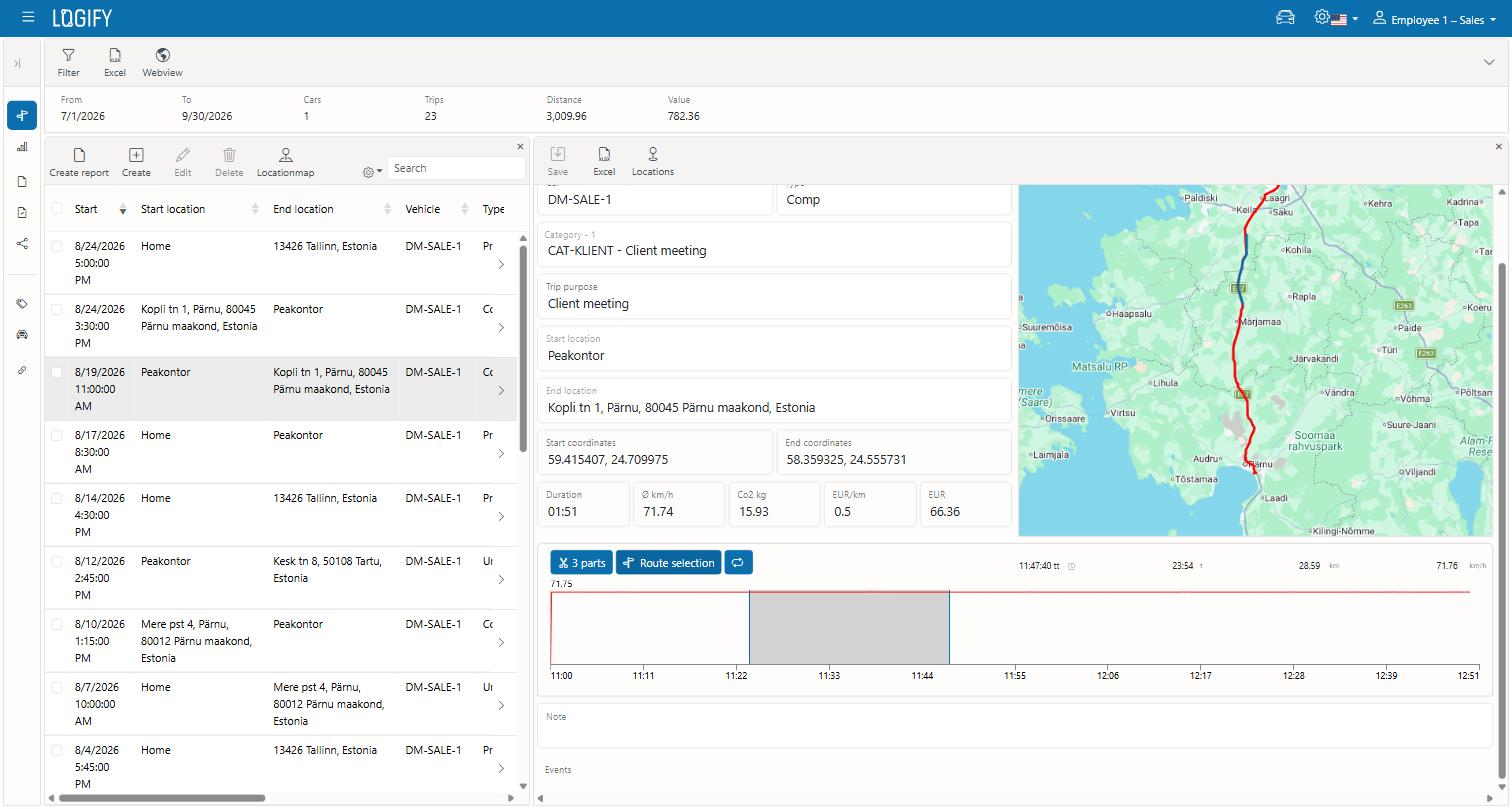
A single recorded trip can be split into two separate trips — useful when what was actually two trips with different purposes ended up being recorded as one. The split point is picked the same way, on the speed chart, which activates the "parts" button.
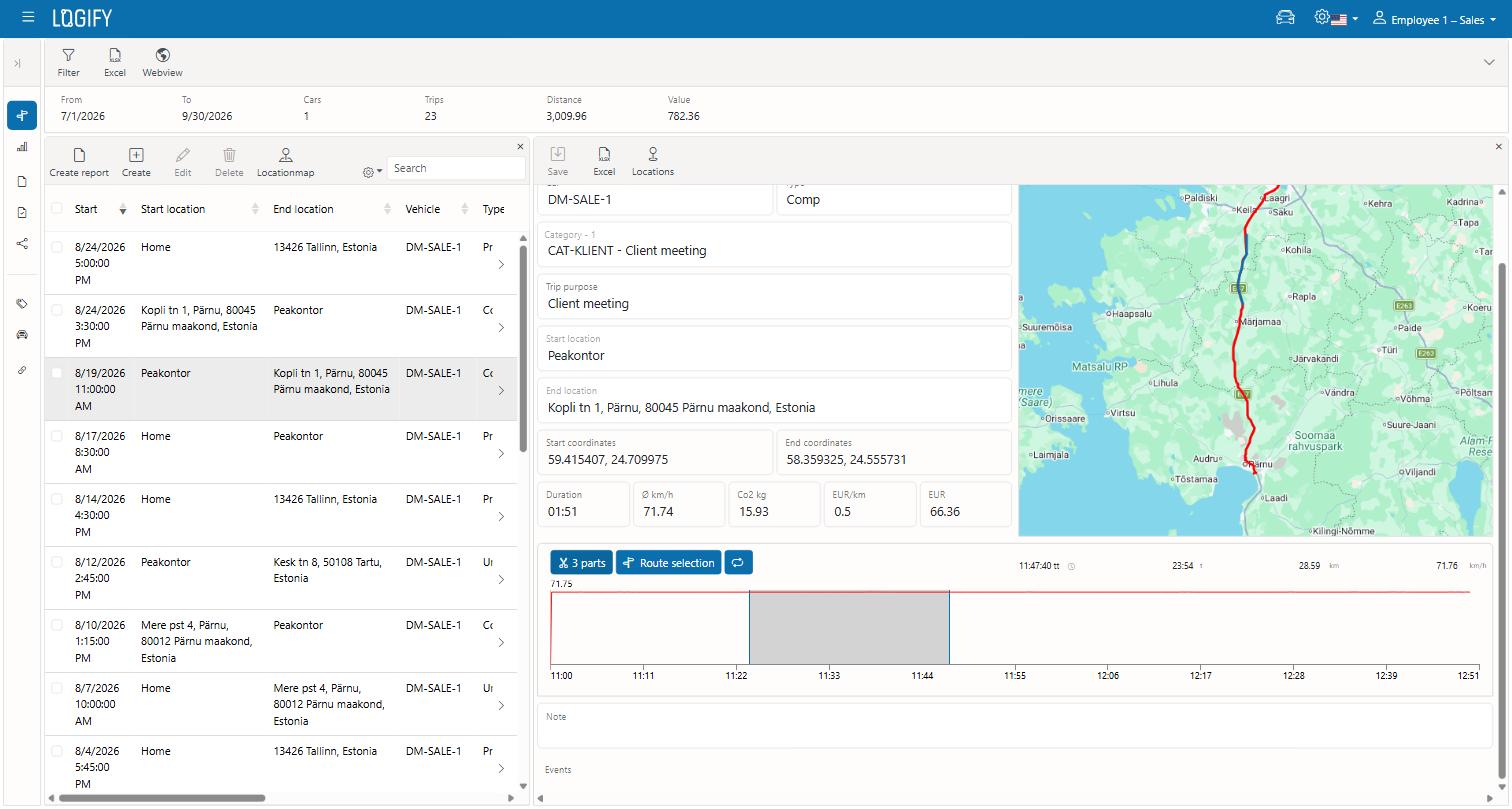
Several trips can be selected in a list and changed in a single action — e.g. assigning them all the same vehicle, Trip Type, purpose, or category at once, instead of editing each one individually.