

Logify teams aren't a top-down structure with a head office and sub-accounts — it's peer-to-peer sharing. One user (a "central user") grants another user (a "connected user") access to their own account's data. One person can be a connected user for several different central users at once, switching between accounts with the Role picker in the top menu, without logging out.
Under Connected users > Users, the central user adds a connected user by email and sends an invitation. The invited person sees and accepts it on their own My connections page.
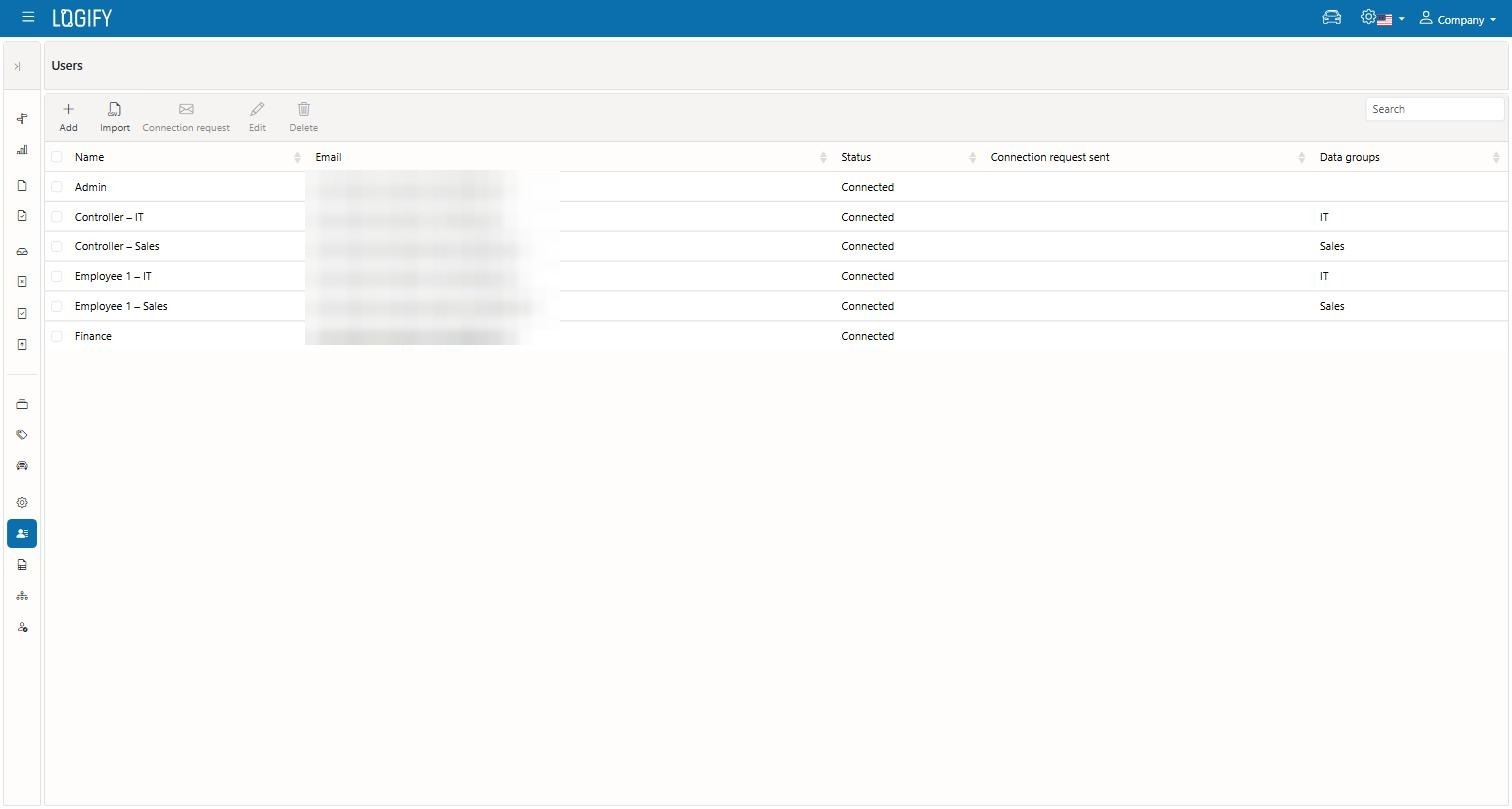
Under Connected users > Data groups, you can create named groups (e.g. "IT Department", "Sales Team") used later to bundle vehicles and users together for reporting and contracts.
From the vehicle screen, a vehicle can be added to one or more Data Groups if you want to scope or roll up reporting by fleet.
Under Connected users > Authorization groups, you can create named permission sets controlling which screens/features (trips, reports, vehicles, trip types, report contracts, etc.) a connected user can see and at what level (none/view/edit/delete). Two built-in groups exist ("Admin" and "Display"), and you can create your own.
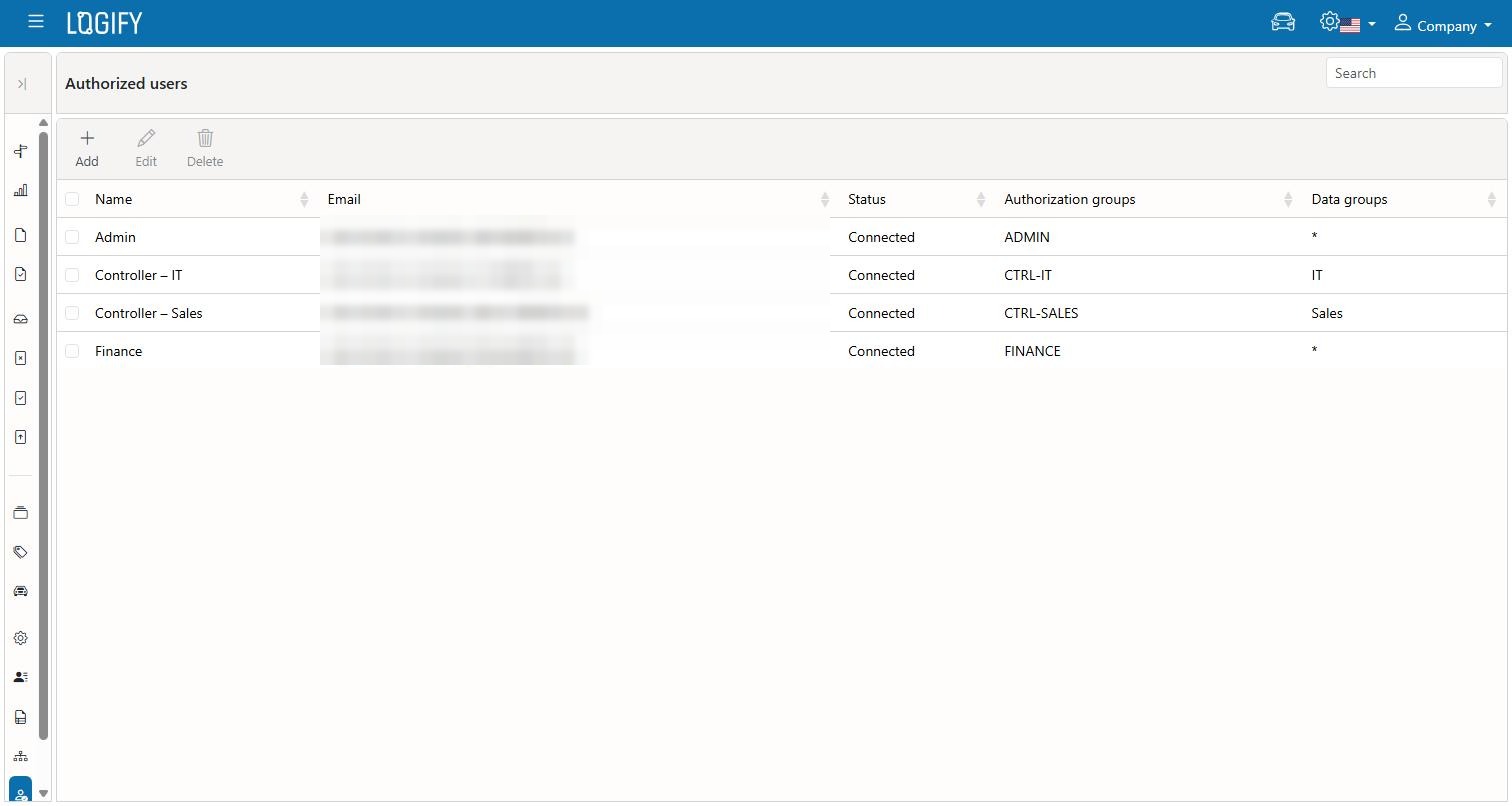
Under Connected users > Authorized users, you assign Authorization Group(s) and Data Group(s) to selected connected users. This is the actual step that decides what someone can see and do. A regular connected user who only submits their own reports doesn't need an Authorization Group — a Report Contract is enough for them, and by default they can only see and manage their own data. Authorization Groups are needed for people acting on the central user's behalf — admins, controllers, and accountants — who need to view, approve, and export reports received from others.
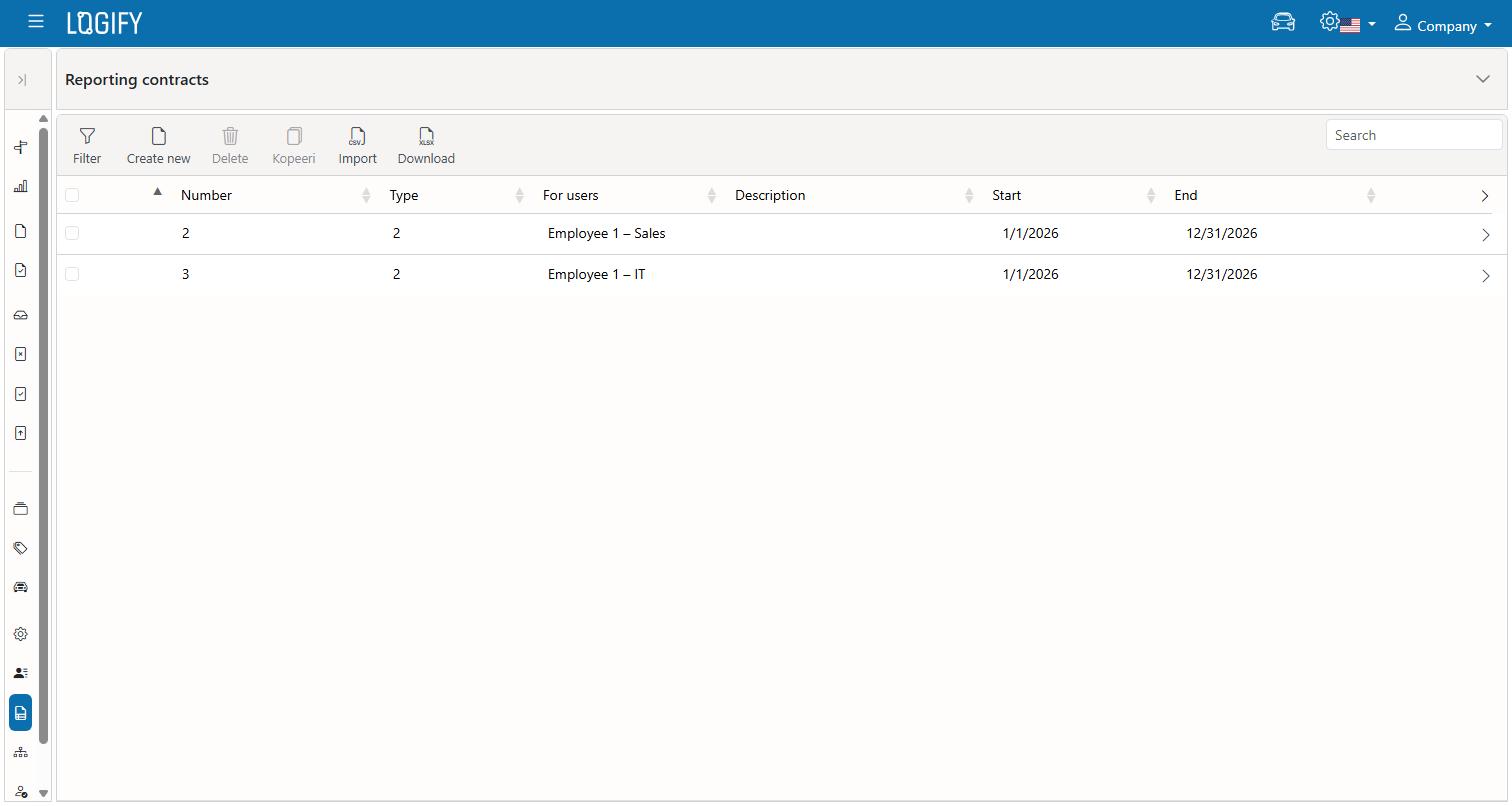
Reporting contracts are recurring rules that scope what a connected user (or a whole Data Group of them) can report: which vehicles/trip types are allowed, period and cumulative distance/value limits with a configurable behavior when exceeded (warn/limit/block), a manual-trip distance allowance, and a validity date range. Contracts can be bulk-copied (e.g. to renew for a new year) or bulk-imported from a CSV file.
Under Connected users > Users settings, configure whether the central user must confirm submitted reports, export rules, the period-closing cutoff date, reminder emails, and the wording of approval/rejection notifications.
Connected users submit (finish/share) their reports → the central user reviews them under the Received tab → approves or rejects (with a reason) → approved reports can later be exported.
Both vehicles and report contracts can be added in bulk from a CSV file (each has an "Import" button on its own page). The report-contracts import is the most powerful one — a single CSV row can create a connected-user invite, a vehicle, a report contract, and a Data Group membership, all at once.